A wireless presentation system lets anyone share a laptop, tablet or phone screen to the meeting room display without a cable, usually by pressing a button or opening an app. Wireless conferencing systems go one step further: the laptop also uses the room camera, microphones and speakers for a Teams or Zoom call, so the meeting runs from the user’s own device.
This guide explains the difference between wireless presentation and wireless conferencing, how sharing works, which system suits which room, and what to plan with IT, for offices, schools and training rooms in Dubai, Abu Dhabi and across the UAE.
Wireless presentation or wireless conferencing?
| Wireless presentation (BYOD) | Wireless conferencing (BYOM) | |
|---|---|---|
| What it does | Shares the laptop screen to the room display | Shares the screen and connects the laptop to the room camera, microphones and speakers |
| Meeting app | Not involved | Runs on the user’s laptop (Teams, Zoom, Google Meet and others) |
| Best for | Presentations, classrooms, local meetings | Hybrid meetings in rooms without a dedicated room system |
| Examples | Barco ClickShare C-10 and C-5, MAXHUB WT15S | Barco ClickShare CX-20, CX-30 and CX-50, Barco ClickShare Bar Core, MAXHUB WT15M |
BYOD means bring your own device; BYOM means bring your own meeting. Rooms with a dedicated Microsoft Teams Rooms system work differently: see Microsoft Teams Rooms.

How people share
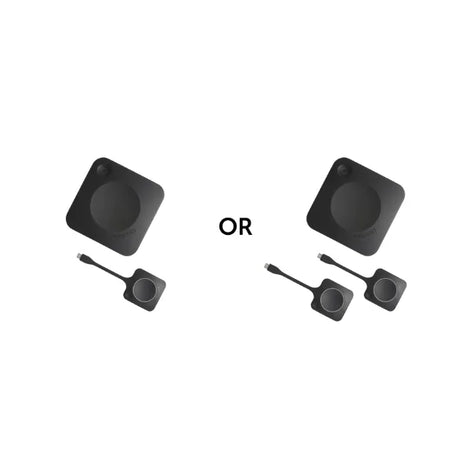
- A button: plug a USB button into the laptop and press it. Barco ClickShare Buttons work this way, with no software to install on most laptops.
- An app: install the system app on a laptop, tablet or phone and select the room.
- Native casting: some systems accept the casting built into the device, which helps guests and phones.
- Several sources: systems such as the Barco ClickShare C-10 show up to two sources at once for side-by-side comparison.
Wireless presentation systems
The Barco ClickShare C-10 Gen 2 shares laptop or mobile content to the room display, supports up to two simultaneous sources and 4K output at 30 Hz, and works with the ClickShare Button, app or a supported native sharing method. It is a presentation system only and does not connect the laptop to room cameras or microphones. The ClickShare C-5 Gen 2 presents through the ClickShare App or an optional Button. For MAXHUB displays, the MAXHUB WT15S is a 4K screen-sharing dongle.

Wireless conferencing systems
The Barco ClickShare CX-20, CX-30 and CX-50 Gen 2 link the user’s laptop wirelessly to the room’s approved camera, microphones and speakers, while the meeting application runs on the laptop. The CX-20 package includes one ClickShare Button and the CX-30 and CX-50 include two. The Barco ClickShare Bar Core puts a 4K camera, six beamforming microphones, stereo speakers and ClickShare conferencing in one video bar for small rooms and huddle spaces. The MAXHUB WT15M adds BYOD conferencing to compatible MAXHUB endpoints.


Wired BYOD with one cable
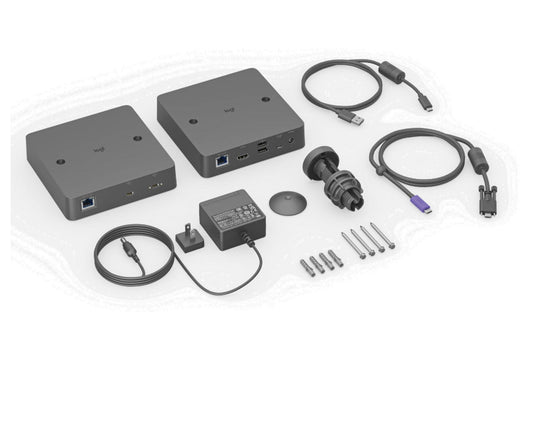
Some rooms prefer a single cable at the table. The Logitech Extend connects a laptop to the room display, camera and audio with one cable and supports 4K, for rooms where users want a reliable plug-in connection as well as, or instead of, wireless sharing.

Dedicated room system or BYOD?
| Room type | Usual choice |
|---|---|
| Classroom or training room | Wireless presentation, with the interactive panel’s own sharing |
| Huddle room used by visitors and staff | Wireless conferencing video bar such as ClickShare Bar Core |
| Meeting room with mixed meeting platforms | Wireless conferencing such as ClickShare CX-30, or one-cable BYOD |
| Company standard on Microsoft Teams | A Teams Rooms system, with wireless presentation for content, such as the ClickShare Hub Pro |
Planning with IT
- Network: decide whether the base connects to the corporate network, a guest network or both, and agree this with IT before installation.
- Guests: choose a method that works for visitors without installing software, such as a Button or native casting.
- Management: plan firmware updates and central management for many rooms.
- Display connection: the base connects to the room display, usually over HDMI, and needs power and a network point behind the screen.
- Room equipment: for wireless conferencing, check the room camera, microphones and speakers are supported by the system.
Planning checklist before you buy
- Decide whether rooms need presentation only or full wireless conferencing.
- Count how many people share at once and whether side-by-side sources are needed.
- Check the devices people use: Windows, Mac, Chromebooks, tablets and phones.
- Plan the network with IT, including guests.
- Choose Buttons, app or native casting for each room.
- Keep a wired option, such as HDMI or one-cable USB-C, for backup.
Common mistakes to avoid
- Buying presentation-only for hybrid rooms: a presentation system does not connect the laptop to the room camera and microphones.
- Ignoring guests: visitors may not be allowed to install apps; choose Buttons or native casting.
- No network plan: wireless sharing depends on the network design agreed with IT.
- Too few Buttons: keep enough Buttons for the people who present in each room.
- No wired backup: keep a cable at the table for when a device will not connect.
Key terms explained
- BYOD: bring your own device, sharing a personal laptop or phone to the room screen.
- BYOM: bring your own meeting, running the video call on the laptop with the room camera and audio.
- Base unit: the receiver connected to the room display.
- Button: a USB device that shares the laptop screen with one press.
- Native casting: the screen sharing built into a laptop, tablet or phone.
- 4K30: 4K resolution at 30 frames per second.
Get the right sharing system for your rooms
CorporateAV.ae designs, supplies and installs wireless presentation and conferencing across the UAE, and is an authorised dealer of Barco, Logitech and MAXHUB. See our boardroom and meeting room solutions and video conferencing solutions, browse wireless presentation and screen sharing, or request a project quote.